
Part 1 of the “Local AI” series — A practical guide to running local LLMs on CPU-only consumer hardware
You’ve probably heard that running AI models locally requires expensive hardware: a Mac with Apple Silicon, or a gaming PC with a high-end NVIDIA GPU. This isn’t entirely wrong — those setups are faster. But they’re not the only option.
This series documents my experience running local LLMs on a standard professional laptop: an Intel Core i7 with 20 GB of RAM and no dedicated graphics card. The kind of machine a physician, researcher, or office professional might already own. No €2000 GPU upgrade required.
Why bother with local LLMs?
- Privacy: Your data never leaves your machine. For sensitive work — medical records, legal documents, proprietary code — this matters.
- Offline access: Works on a plane, in a basement, anywhere without internet.
- No subscription fees: Once set up, it’s free forever.
- Learning: Understanding how these models actually work, beyond the ChatGPT interface.
The tradeoff? Speed. Local models on consumer hardware are slower than cloud APIs. But “slower” doesn’t mean “unusable” — and that’s what this series demonstrates.
The Test Hardware
Let’s be transparent about what we’re working with:
| Component | Specification |
|---|---|
| CPU | Intel Core i7-1165G7 (11th gen, 4 cores, 2.80 GHz) |
| GPU | Intel Iris Xe Graphics (integrated, 128 MB dedicated) |
| RAM | 20 GB DDR4 (3200 MT/s) |
| Storage | 477 GB SSD |
| OS | Windows 11 |
This is a typical business laptop from 2021-2022. Nothing special.
What This Means for LLMs
The critical point: no dedicated VRAM. The integrated Intel GPU has only 128 MB of its own memory — completely inadequate for LLM inference. This means all processing happens on the CPU, using system RAM.
This is actually fine for smaller models. Here’s why:
- 20 GB of RAM can hold models up to ~10-12 GB comfortably
- CPU inference works, just slower than GPU
- Models under 5 GB run surprisingly well
The bottleneck isn’t memory — it’s compute speed. A 2-billion parameter model runs at ~15 tokens per second on this hardware. Slower than GPT-4’s streaming output, but fast enough to be useful.
A Note on “Unified Memory”
If you’ve researched local LLMs, you’ve seen claims like “Run 70B models on a MacBook Pro with 64 GB unified memory!” This can be misleading for PC users.
Unified memory (Apple Silicon) isn’t just shared RAM — it’s shared RAM with extremely high bandwidth (200-800 GB/s). The CPU and GPU access the same memory pool at speeds that rival dedicated VRAM.
Intel integrated graphics technically share system RAM too, but at ~50 GB/s — 10-15x slower. This is why Macs punch above their weight for LLM inference, and why we shouldn’t expect the same from a PC with integrated graphics.
The realistic comparison:
| Setup | gemma2:2b | llama3 8B |
|---|---|---|
| Mac M2 (16 GB) | ~30 tok/s | ~20 tok/s |
| PC i7 + 20 GB (no GPU) | ~15 tok/s | ~5 tok/s |
| PC + RTX 3060 (12 GB VRAM) | ~40 tok/s | ~25 tok/s |
Our CPU-only setup is roughly 2x slower than a Mac and 3x slower than a mid-range GPU. Usable, but you need to set expectations accordingly.
Installing Ollama
Ollama is the easiest way to get started with local LLMs. It handles model downloads, quantization, and the inference engine — all in one package.
Step 1: Download and Install
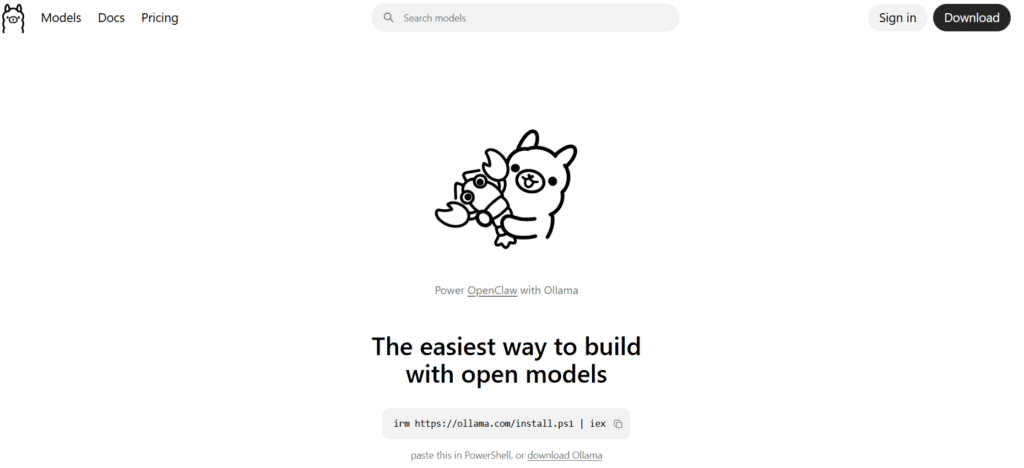
- Go to ollama.com
- Download the Windows installer
- Run the installer (standard “Next, Next, Finish”)
- Ollama runs as a background service — no visible window
Step 2: Verify Installation
Open PowerShell or Command Prompt:
ollama --version
You should see something like ollama version 0.1.xx.
Step 3: Download Your First Model
Let’s start with gemma2:2b — Google’s 2-billion parameter model. It’s small, fast, and surprisingly capable:
ollama pull gemma2:2b
This downloads approximately 1.7 GB. On a decent connection, 2-5 minutes.
Step 4: Run the Model
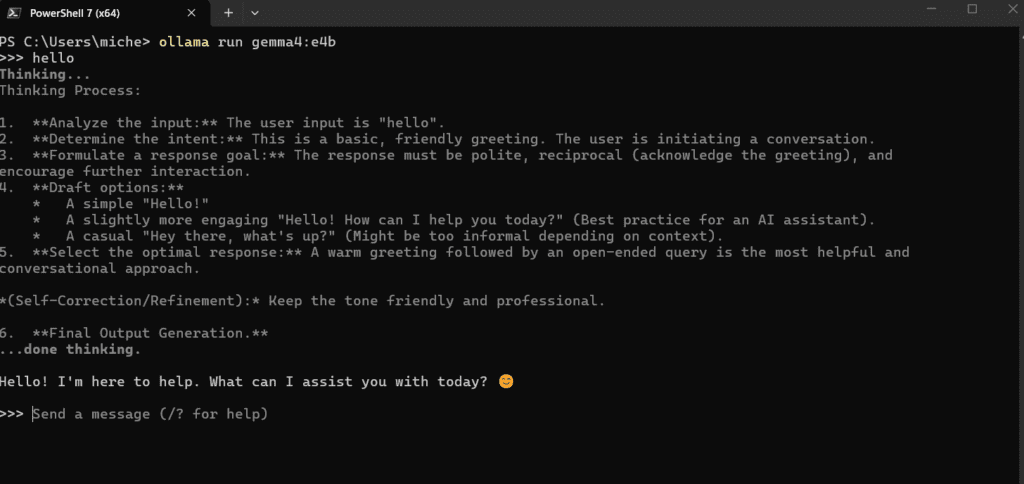
ollama run gemma2:2b
You’re now in a chat session. Type a message and press Enter:
>>> Hello, who are you?

I am Gemma, an open-weights AI assistant developed by Google DeepMind.
That’s it. You’re running a local LLM.
To exit, type /bye or press Ctrl+C.
What Just Happened?
Behind the scenes, Ollama:
- Downloaded a quantized model — The original Gemma 2 2B weights are ~5 GB in full precision. Ollama’s version is 1.7 GB, compressed using 4-bit quantization (Q4_K_M). This reduces memory usage with minimal quality loss.
- Started an inference server — Ollama runs a local API server on port 11434. The CLI is just a client connecting to this server.
- Loaded the model into RAM — The model weights are loaded into system memory. This takes a few seconds on first prompt.
- Generated tokens — The CPU processes your prompt and generates a response, one token at a time.
Beyond the Command Line
The CLI works, but most people prefer a graphical interface. Ollama exposes a REST API that many applications can connect to.
In this series, we’ll primarily use Chatbox — a lightweight desktop app that connects to Ollama and provides a ChatGPT-like experience. We’ll cover setup in Part 3 when we run our real-world tests.
For now, know that Ollama is the foundation. It’s the “engine” that runs the models. The interface you use on top — CLI, Chatbox, Open WebUI, or something else — is a separate choice.
A preview of what’s coming: In Part 4, we’ll introduce LM Studio, which takes a different approach — bundling the runtime and interface together. Spoiler: it’s significantly faster than Ollama on this hardware. But more on that later.
Recommended Models for CPU-Only Hardware
Based on testing (detailed in Part 2), here are models that work well on 20 GB RAM without a GPU:
| Model | Size | Speed | Best For |
|---|---|---|---|
| gemma2:2b | 1.7 GB | ~15 tok/s | ⭐ General use, coding, Q&A |
| phi3:mini | 2.2 GB | ~12 tok/s | Reasoning, longer responses |
| llama3.2 | 2.0 GB | ~12 tok/s | Chat, general assistant |
| gemma4:e4b | 3.0 GB | ~5-8 tok/s | Complex tasks, visible “thinking” |
| llama3 (8B) | 4.7 GB | ~5 tok/s | ⚠️ Usable but slow |
My recommendation: Start with gemma2:2b. It’s the best balance of speed and capability for this hardware. If you need more power and can tolerate slower responses, try gemma4:e4b — it shows its reasoning process, which is fascinating to watch.
To download any of these:
ollama pull gemma2:2b
ollama pull phi3:mini
ollama pull llama3.2
ollama pull gemma4:e4b
Checking What’s Installed
To see all downloaded models:
ollama list
Example output:
NAME               ID              SIZE      MODIFIED
gemma2:2b          b50d6c999e59    1.7 GB    2 hours ago
gemma4:e4b         a72c7f4d0a15    3.0 GB    1 hour ago
llama3.2:latest    a80c4f17acd5    2.0 GB    1 hour ago
To check what’s currently loaded in memory:
ollama ps
Models stay loaded for a few minutes after use, which speeds up subsequent prompts.
Quick Performance Test
Want to see exactly how fast your system runs a model? Use the --verbose flag:
ollama run gemma2:2b --verbose
After your first prompt, you’ll see detailed timing:
>>> Hello, who are you in one sentence?

I am Gemma, an open-weights AI assistant developed by Google DeepMind.

total duration:       2.0836445s
load duration:        572.8004ms
prompt eval count:    18 token(s)
prompt eval duration: 459.9202ms
prompt eval rate:     39.14 tokens/s
eval count:           15 token(s)
eval duration:        1.0106817s
eval rate:            14.84 tokens/s
The key metric is eval rate — that’s your generation speed in tokens per second. On our test hardware, gemma2:2b achieves ~15 tok/s, which translates to roughly 10-12 words per second.
Troubleshooting
“Error: model not found”
You need to download the model first:
ollama pull <model-name>
First prompt is very slow
Normal. The model needs to be loaded into RAM. Subsequent prompts in the same session are faster.
“Error: out of memory”
The model is too large for your available RAM. Try a smaller model, or close other applications to free memory.
Ollama not responding
Check if the service is running:
ollama serve
If it was already running, this will show an error. If not, it will start the server.
What’s Next
In Part 2, we’ll run proper benchmarks: measuring token generation speed, comparing models, and discovering which tasks they handle well (and which they don’t).
In Part 3, we’ll put these models through real-world tests: coding tasks, logical reasoning, medical document summarization, and clinical decision support. We’ll use Chatbox as our interface and see where small local models succeed — and where they fail.
In Part 4, we reveal the plot twist: LM Studio runs the same models 40-200x faster than Ollama on identical hardware. We’ll explore why, and when each tool makes sense.
Summary
- Local LLMs work on consumer hardware — no dedicated GPU required
- Ollama is the easiest starting point — one installer, simple CLI
- gemma2:2b is the sweet spot — fast enough for interactive use (~15 tok/s)
- Larger models work but are slower — adjust expectations accordingly
- This is just the foundation — graphical interfaces and faster runtimes exist
The goal isn’t to replace cloud AI. It’s to have a capable, private, offline assistant for when you need one. On a laptop you already own.
Next: Local AI: Choosing the Right Model for Your Hardware — Detailed benchmarks and model comparison
See also: Local Artificial Intelligence in Healthcare
About this series: “Local AI” documents a practical exploration of running LLMs on CPU-only consumer hardware. All tests were conducted on a 2021-era Intel laptop with 20 GB RAM and no dedicated graphics card. The goal is demonstrating feasibility, not competing with high-end setups.