
Part 4: the conclusion of the “Local AI” series — The LM Studio surprise: same model, same hardware, 40-200x faster
In Part 3, we pushed gemma4:e4b through four demanding tests. The results were impressive — excellent clinical reasoning, comprehensive summaries, working code. But the wait times were brutal: 5 to 16 minutes per response on our CPU-only hardware.
I accepted this as the cost of running larger models locally. Then I tried LM Studio.
Same model. Same hardware. Same prompts.
| Task | Ollama + Chatbox | LM Studio | Speedup |
|---|---|---|---|
| Coding | 5 min 30s | 6.9 seconds | 48x |
| Reasoning | 5 min 28s | 4.4 seconds | 75x |
| Summarization | 8 min 12s | 38.8 seconds | 13x |
| Differential Dx | 16 min 1s | 5.0 seconds | 192x |
This isn’t a typo. The clinical differential diagnosis that took 16 minutes on Ollama completed in 5 seconds on LM Studio. Same gemma4:e4b model, same i7 laptop, same prompt.
This article explains what happened, why it matters, and when to use each tool.
What Is LM Studio?
LM Studio is a desktop application for running local LLMs. Unlike Ollama (which is primarily a backend/CLI tool that other interfaces connect to), LM Studio bundles everything together: model download, runtime engine, and chat interface in one application.
Download: lmstudio.ai
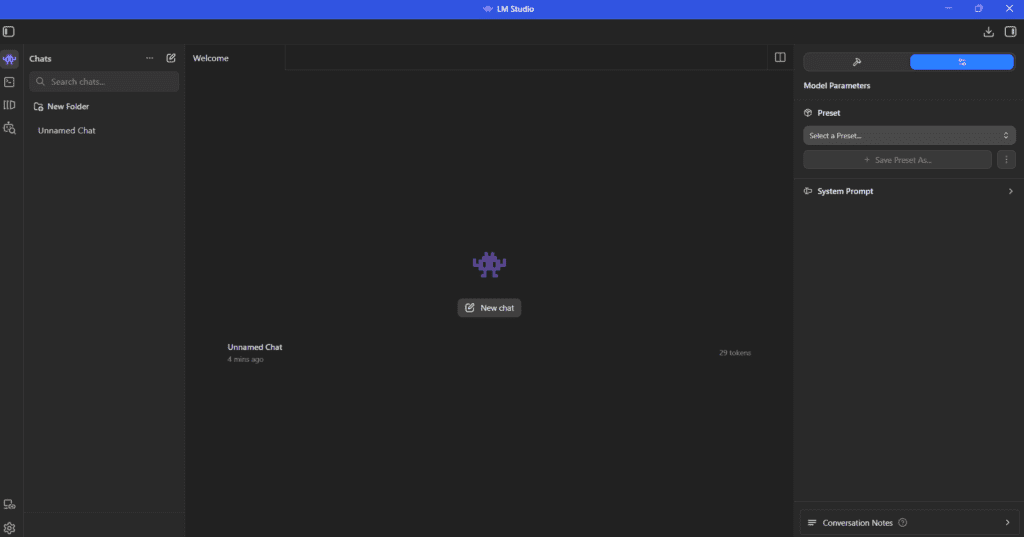
Key differences from Ollama:
| Aspect | Ollama | LM Studio |
|---|---|---|
| Architecture | Backend service + separate UI | All-in-one application |
| Model format | Ollama-specific | Standard GGUF files |
| Model source | Ollama library | Hugging Face / direct download |
| API | Ollama API | OpenAI-compatible API |
| Configuration | Limited | Extensive parameters |
The tradeoff: Ollama is simpler and has a larger ecosystem of compatible interfaces. LM Studio offers more control and, as we discovered, dramatically better performance in certain scenarios.
The Test Setup
To ensure a fair comparison, I used:
- Model: gemma-4-E4B-it-GGUF (Q4_K_M quantization)
- Hardware: Intel i7-1165G7, 20 GB RAM, no dedicated GPU
- GPU Offload: Disabled (set to 0) — pure CPU inference
- Prompts: Identical to Part 3
The model file is the same architecture and quantization level as Ollama’s gemma4:e4b. The only variable is the runtime software.
Test Results
Task 1: Coding
Prompt: Write a Python function that calculates average heart rate, excluding outliers, and returns min/max values.
| Metric | LM Studio | Ollama (Chatbox) |
|---|---|---|
| Time | 6.91 seconds | 5 min 30s |
| Tokens | 1,003 | 2,089 |
| Speed | 5.01 tok/s | 6.49 tok/s |
| Speedup | 48x faster | — |
The output quality was identical — professional code with type hints, edge case handling, and test examples. But LM Studio produced it in 7 seconds instead of 5.5 minutes.
Interestingly, LM Studio’s response was also more concise (1,003 tokens vs 2,089) while covering the same content. Less verbose, equally complete.
Task 2: Reasoning
Prompt: Hospital ward allocation problem (12 patients, room constraints, isolation requirements).
| Metric | LM Studio | Ollama (Chatbox) |
|---|---|---|
| Time | 4.39 seconds | 5 min 28s |
| Tokens | 286 | 3,039 |
| Answer | ✅ Correct (7 rooms) | ✅ Correct (7 rooms) |
| Speedup | 75x faster | — |
Both produced the correct answer with clear step-by-step reasoning. LM Studio did it in 4.4 seconds with 286 tokens. Ollama took 5.5 minutes and generated 3,039 tokens — over 10x more verbose for the same conclusion.
Task 3: Medical Summarization
Prompt: Summarize a CABG discharge letter highlighting diagnosis, procedure, complications, medication changes, and follow-up.
| Metric | LM Studio | Ollama (Chatbox) |
|---|---|---|
| Time | 38.83 seconds | 8 min 12s |
| Tokens | 288 | 7,559 |
| Speedup | 13x faster | — |
This was the most clinically impressive result. LM Studio’s summary was not just faster and shorter — it was more complete:
LM Studio captured:
- ✅ All diagnoses
- ✅ Detailed procedure (LIMA→LAD, SVG→diagonal, SVG→PDA)
- ✅ Pneumothorax complication
- ✅ Anemia with actual lab values (Hgb 7.9, Hct 21.9)
- ✅ Specific medication changes (Metoprolol 50mg BID)
- ✅ Complete follow-up instructions with timeframes
Ollama (Chatbox) missed:
- ❌ The anemia lab values
- ❌ Specific medication dosages
In 39 seconds and 288 tokens, LM Studio produced a more clinically useful summary than Ollama did in 8 minutes with 7,559 tokens. This was the result I found hardest to believe — and replicated multiple times to confirm.
Task 4: Differential Diagnosis
Prompt: 58-year-old male with STEMI presentation — generate differential diagnoses and immediate workup.
| Metric | LM Studio | Ollama (Chatbox) |
|---|---|---|
| Time | 4.98 seconds | 16 min 1s |
| Tokens | 885 | 9,134 |
| Speedup | 192x faster | — |
The response was excellent — STEMI correctly identified as top diagnosis with anatomical localization (anterior wall from V1-V4 distribution), aortic dissection included as critical rule-out, comprehensive workup with serial troponins and ECGs, “time is muscle” urgency conveyed.
One caveat: the response was truncated due to LM Studio’s default context length settings. This is configurable — increasing the context window in settings resolves it. Even truncated, the core clinical content was complete.
The Complete Comparison
| Task | LM Studio | Ollama + Chatbox | Ollama + Open WebUI |
|---|---|---|---|
| Coding | 6.9 sec | 4-5 min | 5m 30s |
| Reasoning | 4.4 sec | 3 min | 5m 28s |
| Summarization | 38.8 sec | 5-6 min | 8m 12s |
| Differential Dx | 5.0 sec | 5-6 min | 16m 1s |
LM Studio is 40-200x faster than Ollama-based interfaces while producing equal or better quality output.
Why Is LM Studio So Much Faster?
I don’t have definitive answers, but here are the likely factors:
1. No “Thinking” Overhead
On Ollama, gemma4:e4b shows an explicit “thinking” phase — visible chain-of-thought reasoning that takes 2-3 minutes before the actual response begins. LM Studio appears to skip or internalize this step, producing direct responses.
| Runtime | Behavior | Impact |
|---|---|---|
| Ollama | “Thinking…” visible for 2-3 min | Adds minutes to every response |
| LM Studio | Direct response, no visible thinking | Near-instant start |
This may be due to different system prompts or model configuration. The output quality suggests the reasoning still happens — it’s just not displayed.
2. Architectural Differences
Ollama has more layers between you and the model:
User → Interface (Chatbox) → Ollama API → Ollama Server → llama.cpp → Model
LM Studio is more direct:
User → LM Studio → llama.cpp → Model
Fewer layers means less overhead, especially for the coordination between components.
3. Different llama.cpp Configuration
Both tools use llama.cpp as the underlying inference engine, but likely with different default parameters:
- Batch size: LM Studio may use larger batches for more efficient processing
- Thread allocation: Different CPU utilization strategies
- Memory management: More efficient context caching
4. Response Verbosity
LM Studio consistently produced more concise responses — 288 tokens vs 7,559 for the same summarization task. Generating fewer tokens means faster completion, even at the same tokens-per-second rate.
LM Studio Setup
Installation
- Download from lmstudio.ai
- Run the installer (Windows, Mac, or Linux)
- Open LM Studio

Downloading a Model
Unlike Ollama, LM Studio downloads models directly from Hugging Face:
- Click the search icon (magnifying glass) in the left sidebar
- Search for “gemma-4-e4b”
- Select a GGUF version (I used Q4_K_M for balance of quality and size)
- Click Download
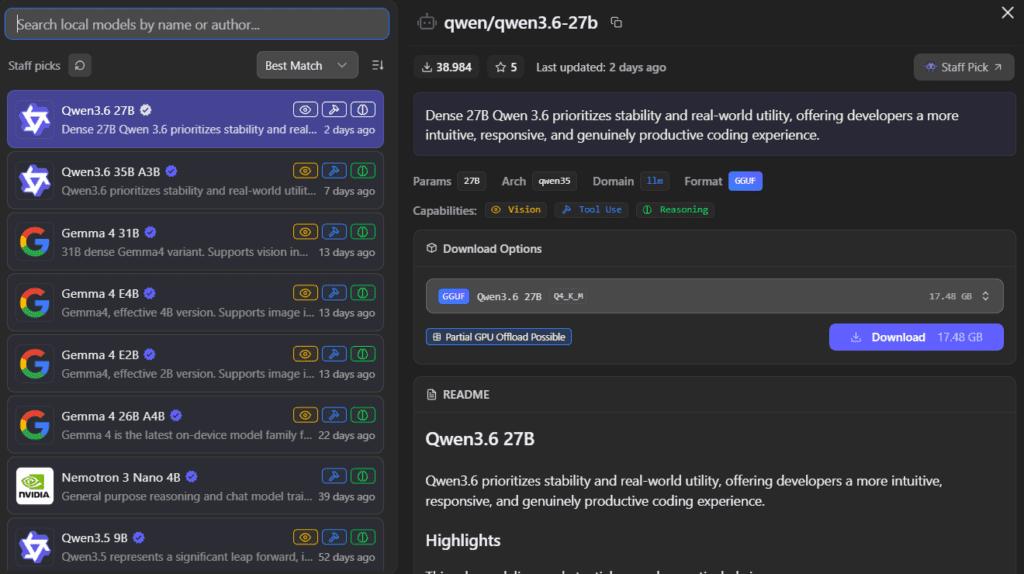
The model downloads to LM Studio’s local storage — separate from any Ollama models you may have.
Running the Model
- Click the chat icon in the left sidebar
- Select your downloaded model from the dropdown
- Start chatting
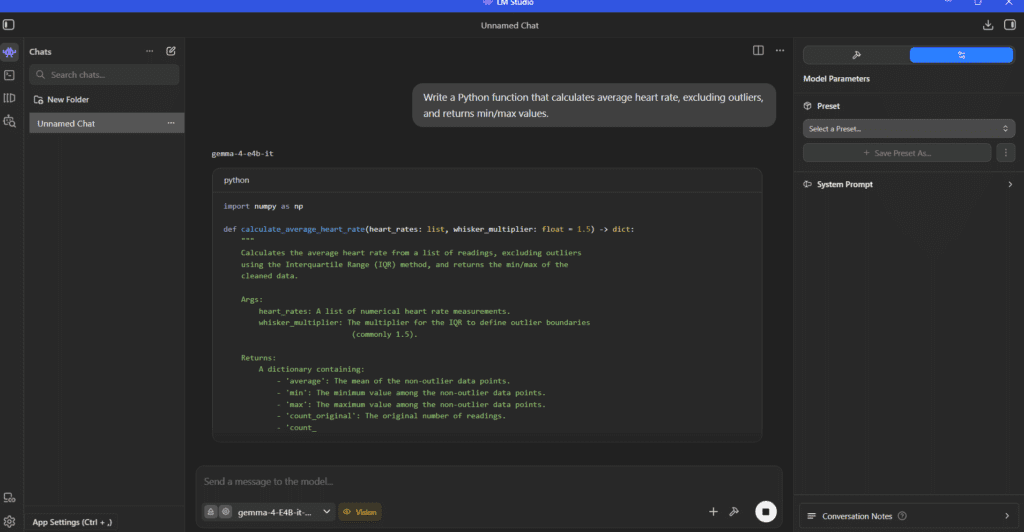
Configuring for CPU-Only
If you have integrated graphics (like our Intel Iris Xe), ensure GPU offload is disabled:
- Click the sliders icon (settings) in the chat panel
- Set “GPU Offload” to 0
- Adjust context length if needed (default may truncate long responses)
Bonus Feature: OpenAI-Compatible API
LM Studio includes a built-in API server that’s compatible with the OpenAI client library. This enables powerful use cases:
Starting the Server
- Click the “Local Server” icon in the left sidebar
- Click “Start Server”
- Note the endpoint (default:
http://localhost:1234)
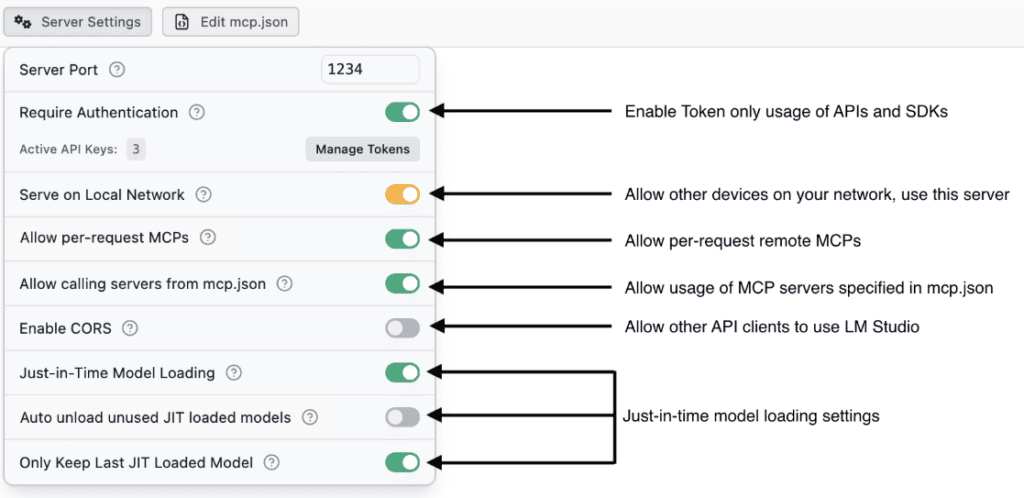
Connecting from Code
import openai

client = openai.OpenAI(
    base_url="<http://localhost:1234/v1>",
    api_key="not-needed"  # LM Studio doesn't require an API key
)

response = client.chat.completions.create(
    model="gemma-4-E4B-it",
    messages=[{"role": "user", "content": "Hello!"}]
)

print(response.choices[0].message.content)
Practical Applications
- Access from mobile: Query your local model from a phone or tablet on the same network
- IDE integration: Connect VS Code, Cursor, or other tools that support OpenAI-compatible endpoints
- Application development: Build apps that use local LLM inference
- Multi-device: Keep the model running on a powerful desktop, query from a laptop
For a physician, this means: run LM Studio on your office workstation, access the model from a tablet on the ward. Complete privacy, no cloud, no subscription.
When to Use What
After all this testing, here’s my recommendation:
Use Ollama + Chatbox When:
- You want the simplest possible setup
- You’re using small models (gemma2:2b, phi3:mini) where speed is already adequate
- You need multiple interfaces (Open WebUI for web access, Chatbox for desktop)
- You’re building applications that specifically require the Ollama API
Use LM Studio When:
- You’re running larger models (4B+ parameters) on CPU
- Response time matters
- You want OpenAI-compatible API access
- You need fine-grained control over model parameters
- You’re willing to manage separate model downloads
The Honest Tradeoff
LM Studio requires downloading models separately from Ollama. If you’re already invested in the Ollama ecosystem, this means duplicate storage. On my system:
- Ollama’s gemma4:e4b: ~3 GB
- LM Studio’s gemma-4-E4B-it-GGUF: ~3 GB
- Total: ~6 GB for the “same” model
For the 40-200x speed improvement, I consider this worthwhile. Your mileage may vary.
Future Directions
The LM Studio results open interesting possibilities:
Local LLMs as Agent Backends
With 5-second response times instead of 5-minute waits, using gemma4:e4b in multi-agent systems becomes feasible. A workflow with 10 LLM calls:
- Ollama: 10 × 5 min = 50 minutes
- LM Studio: 10 × 30 sec = 5 minutes
This is still slower than cloud APIs, but usable for privacy-critical applications.
Hybrid Architectures
A practical approach: use local LLMs (via LM Studio) for simple queries and data processing, escalate to cloud APIs (Claude, GPT-4) for complex reasoning. Best of both worlds — privacy for routine tasks, capability when needed.
Clinical Decision Support
The summarization and differential diagnosis results suggest gemma4:e4b could support clinical workflows:
- Summarize patient histories before rounds
- Generate differential diagnoses for educational review
- Extract key information from discharge letters
Always with physician oversight — but as an assistant rather than a bottleneck.
Series Conclusion
Four articles ago, we started with a question: can you run useful LLMs on a standard professional laptop with no dedicated GPU?
The answer is yes — with caveats:
- Hardware matters less than expected: Our i7 + 20GB RAM + integrated graphics handled models up to 4B parameters comfortably
- Model choice is critical: gemma2:2b for speed, gemma4:e4b for quality — pick based on your needs
- Software choice is even more critical: The same model runs 40-200x faster on LM Studio than Ollama. This was the biggest surprise of the entire project
- Local LLMs are ready for real work: Coding assistance, document summarization, clinical reasoning support — all feasible on consumer hardware
- They’re not replacements for cloud AI: Complex multi-step reasoning, very long contexts, and cutting-edge capabilities still favor Claude, GPT-4, and similar services
The practical takeaway: install LM Studio, download gemma4:e4b, and you have a capable, private, offline AI assistant — on the laptop you already own.
Quick Start Summary
For readers who want to skip to the end:
- Download LM Studio from lmstudio.ai
- Search and download
gemma-4-E4B-it-GGUF(Q4_K_M version) - Set GPU Offload to 0 if you don’t have a dedicated GPU
- Start chatting — expect responses in seconds, not minutes
That’s it. Local AI on consumer hardware, without the wait.
This concludes the “Local AI” series. All tests were conducted on an Intel i7-1165G7 laptop with 20 GB RAM and no dedicated GPU.
Previous articles:
- *Part 1: Running LLMs Without Dedicated Graphics — Setup and installation*
- *Part 2: Choosing the Right Model — Benchmarks and model selection*
- *Part 3: Stress-Testing on Real Tasks — Coding, reasoning, and medical applications*